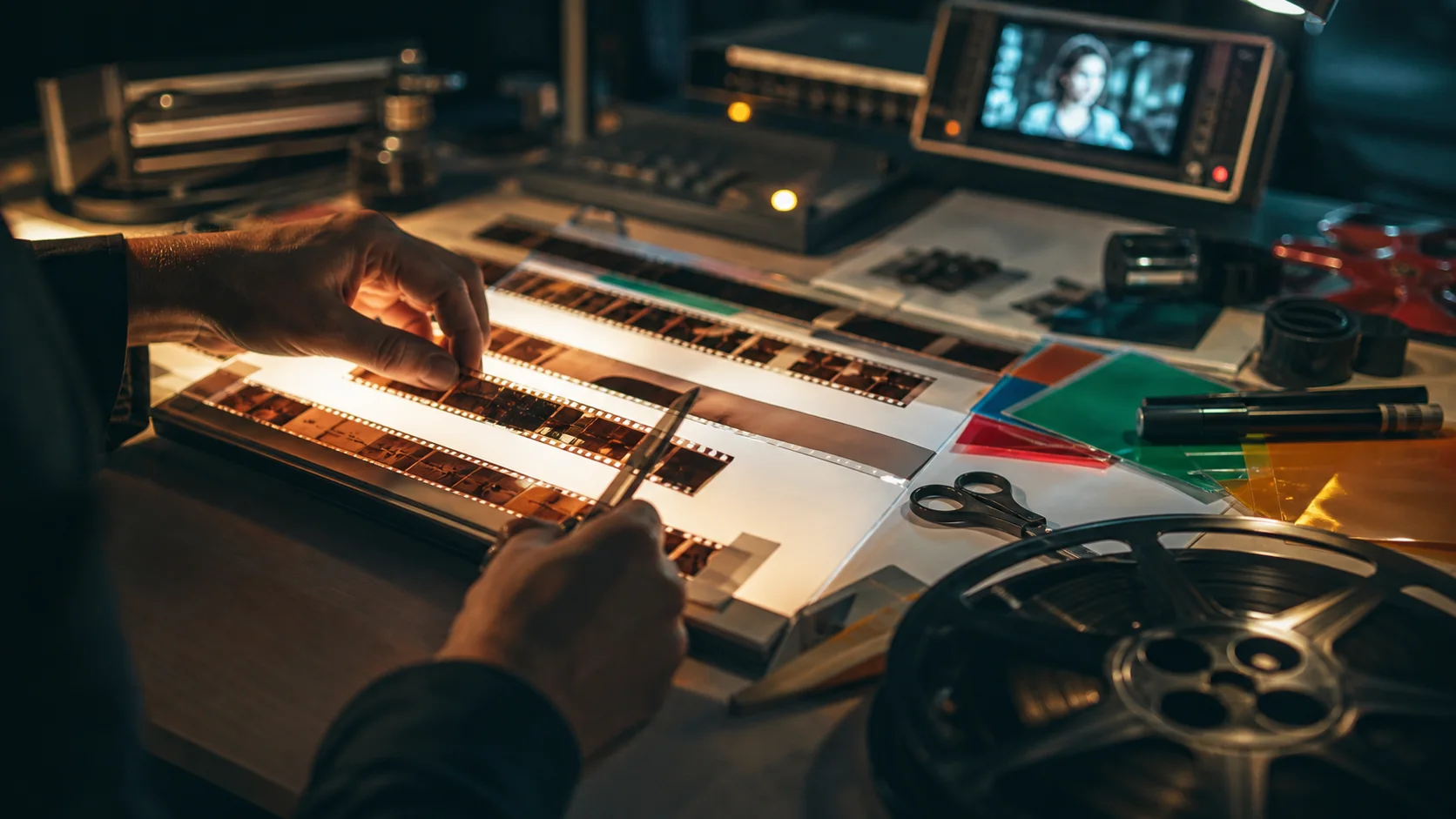

Original issue
Frame 00:14
Hand detail drifted
Find the bad shots, regenerate only what failed, and keep your characters, scenes, prompts, versions, and costs under control.
Targeted repair cases
Start with the defect your audience can see, then repair only the frames that need a new pass.
Repair workspace
Nova campaign / Cut 07
Keep the intent. Fix the hand.
Target isolated in source frame
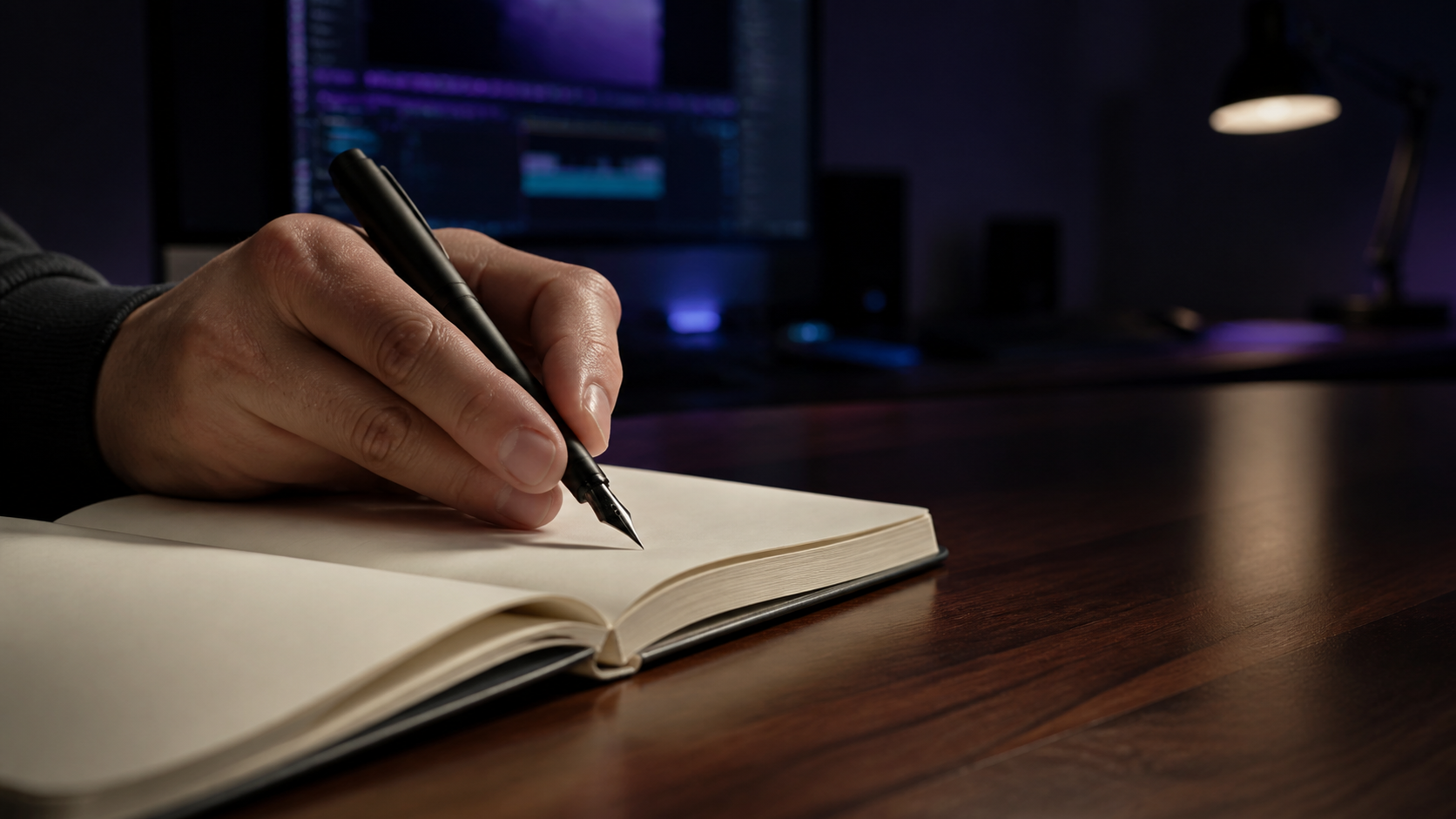 Repair range · 00:18 — 00:21
Correct a broken pen grip while retaining the desk, lighting, and camera angle.
Inspect repairInteractive repair review
Repair output review
00:18 — 00:21
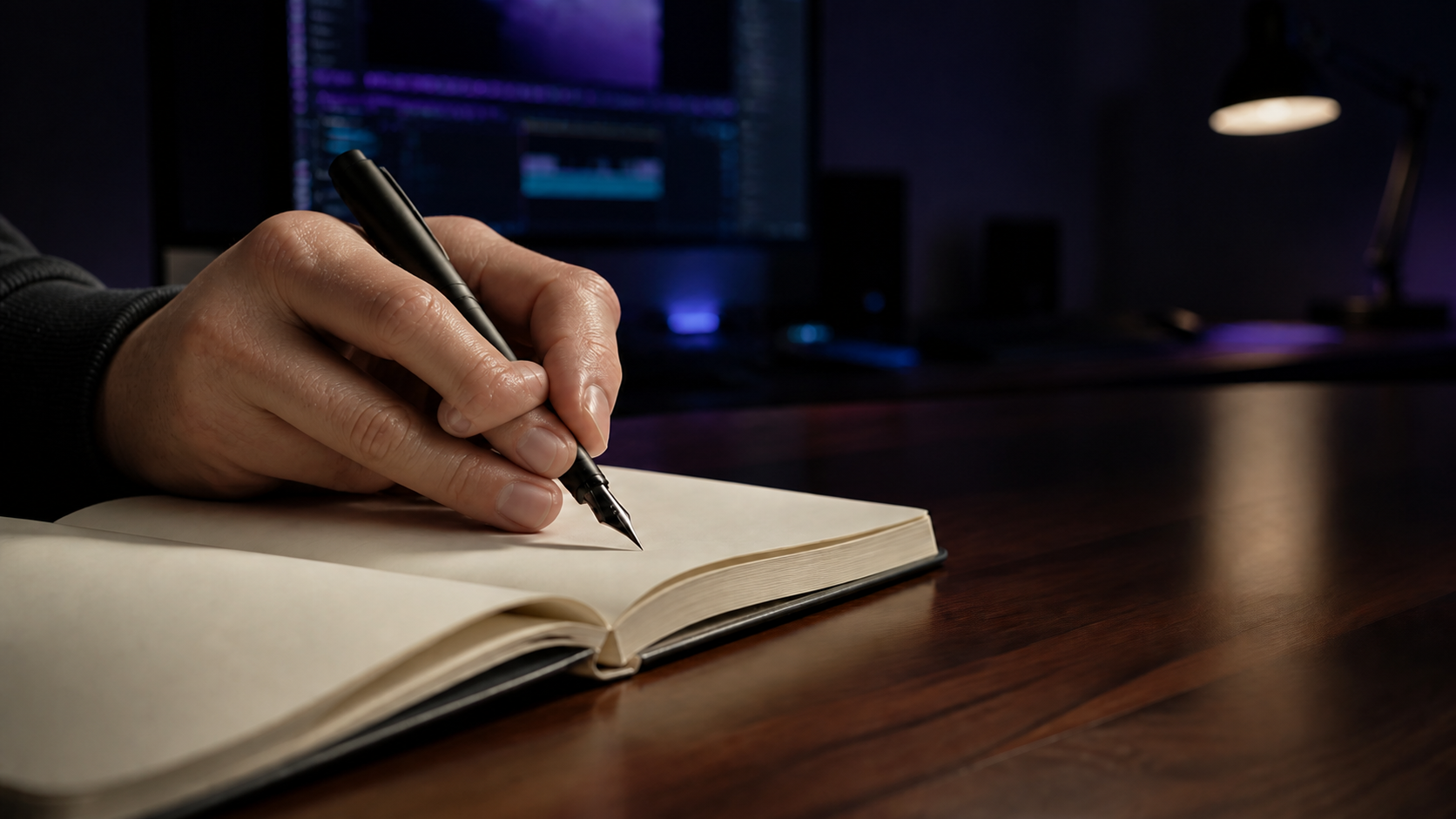
Drag across the frame to review a focused correction before replacing a usable shot.
From the original upload to an approved take, every change, constraint, and cost stays visible.
 01
01Bring in MP4, MOV, or WebM and keep the original untouched.
 02
02Find scenes, shots, and likely issues with frame-level context.
 03
03Confirm intent, evidence, and budget before execution.
 04
04Compare candidates, adopt the best result, and keep prior versions.
Protect approved shots, character continuity, project history, and the generation budget already invested.
Illustrative workflow story
 Mara LeeCreative producer
“The shot already had the right pacing. I only needed to fix one hand, not lose the timing the editor had worked for.”
 Devon EllisPost-production lead
“Giving a note a frame and a timestamp makes the handoff much clearer. Everyone can see what is changing and what stays protected.”
 Sofia ParkBrand content lead
“A preview before the full run is the difference. We can check the product detail before committing the rest of the scene.”
 Jon BellIndependent filmmaker
“I want a repair to feel like an edit decision, not another mystery generation. The visible scope makes that possible.”
 Alex NguyenMotion designer
“The quick pass gives us a useful direction before the team commits time to the full repair.”
 Riley CarterProduction coordinator
“It helps to leave one clear note with the clip instead of translating the same issue across three tools.”
 Kai AdamsCampaign lead
“We can protect the approved composition while trying a focused fix where the scene actually needs it.”
 Owen IbarraIndependent editor
“I like having the repair request travel with the footage, frame range, and review decision.”
It is designed for local defects such as anatomy drift, continuity breaks, unstable motion, unwanted objects, noisy audio, and shots that need a controlled replacement.
No. The workflow keeps the original and focuses execution on the shot or evidence you approve.
Yes. Diagnosis, evidence, repair intent, and the proposed budget remain visible before paid processing.
The current upload flow accepts MP4, MOV, and WebM video files.
Continuity is an explicit constraint. Adjacent shots, references, and the original source stay available during review.
You can explore without an account. Starting a repair opens sign-in first, then returns directly to the upload workspace.
Keep the footage that already works and move only the problem into a focused, reviewable repair flow.
Start a repair